
Your mobile data runs out at the worst possible moment, and topping up is not always an option. That is the reality for millions of Android users across Uganda, Nigeria, South Africa, Kenya, and beyond. HTTP Custom free internet has become one of the most searched solutions because it actually works: the app tunnels your traffic through SSH and SSL connections that exploit carrier loopholes, zero-rated domains, and SNI bugs. This guide walks you through every configuration step from scratch, explains what each setting actually does, and tells you exactly where people go wrong. If you have already read surface-level posts that stop at "download the APK," this is the guide you needed first.
Table of Contents
What Is HTTP Custom and Why It Works for Free Internet
Quick Takeaways
Download and Install HTTP Custom on Android
Method 1: Import a Ready-Made Config File
Method 2: Manual SSH WebSocket Configuration
Method 3: SSL and SNI Bug Configuration
Comparing HTTP Custom Connection Methods
Troubleshooting Common HTTP Custom Problems
Sharing Your HTTP Custom Connection via Hotspot
Frequently Asked Questions
References
What Is HTTP Custom and Why It Works for Free Internet
HTTP Custom is an all-in-one VPN client for Android that lets you craft custom HTTP request headers, set SSH and SSL tunnel parameters, and define SNI (Server Name Indication) values - all from a single interface. It is available on the Google Play Store under the package ID xyz.easypro.httpcustom and is free to download.
The reason it works for free internet access is technical: most mobile carriers maintain a list of zero-rated domains or sponsored-data hostnames that bypass billing. When you craft an HTTP request that looks like it is heading to one of those hostnames - while your actual traffic is tunneled through an SSH or SSL connection - the carrier's billing system sees only the zero-rated host. Your real traffic rides inside that tunnel.
This is not magic. It is a well-documented behavior called HTTP header injection or payload injection, and it has been the backbone of free-internet tools across Africa and Southeast Asia for years. HTTP Custom gives you a clean Android interface to control every variable of that process without needing root access or a PC.
Quick Takeaways
Key Insight | Explanation |
|---|---|
Config files are the fastest route | Importing a pre-built .hc config file gets you connected in under two minutes. No manual payload crafting required. |
The SNI bug is carrier-specific | Your SNI (bug host) must match a zero-rated or whitelisted domain on your specific carrier. A bug that works on MTN Uganda will not work on Airtel. |
Port 443 forces SSL/SNI mode | When you set the SSH port to 443 and supply an SNI value, HTTP Custom automatically treats the connection as an SSL tunnel. |
The payload must use correct line endings | Use |
Server location affects speed, not just availability | Always select the SSH server closest to your physical location. A server in the same country or region will deliver noticeably lower latency. |
Config files expire when ISPs update restrictions | ISPs periodically update their traffic policies. A config that worked last month may stop working. Always test a fresh file if yours suddenly drops. |
Tethering is built in, no root needed | Once connected, you can share the HTTP Custom tunnel via hotspot. Other devices connect through a local proxy at port 7071 without any root requirement. |
Before diving into methods, one point is worth stating clearly: HTTP Custom is not a replacement for a full commercial VPN service when you need guaranteed uptime and speed. What it is - and what it does exceptionally well - is give technically curious users a configurable tool to exploit legitimate carrier loopholes for free or near-free data access. Keep that framing in mind as you choose your method.
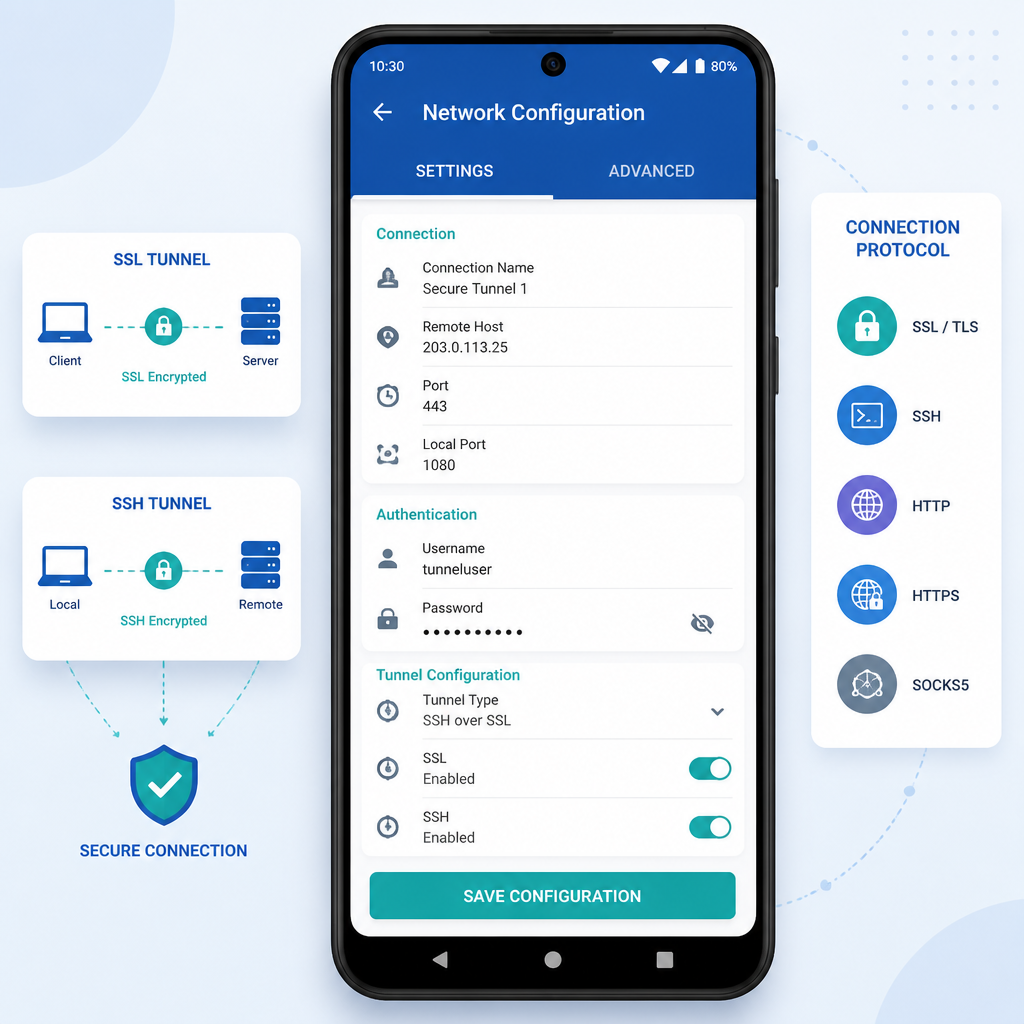

Download and Install HTTP Custom on Android
Open the Google Play Store on your Android device and search for "HTTP Custom." The developer name is easypro and the app icon is a blue shield with a stylized H. Install it and open it. Grant all requested permissions: storage access is required so the app can read and write config files, and location access is used only to read your SSID on Android 8 (Oreo) and above.
If the Play Store is unavailable in your region, you can download the APK from a trusted mirror such as Uptodown. Before installing an APK from outside the Play Store, go to Settings, then Security (or Apps, depending on your Android version), and enable installation from unknown sources. Once installed, the steps are identical to the Play Store version.
Pro tip: Always download the latest version of HTTP Custom. Older builds have known connection issues on Android 12 and above, and some config file formats from the current year will simply not load on outdated app versions.
Method 1: Import a Ready-Made Config File
This is the fastest method and the one most users should start with. A config file (usually ending in .hc or sometimes .ehi) bundles your SSH server credentials, payload, SNI, and proxy settings into a single importable package. Communities and Telegram groups for users in Uganda, Kenya, Nigeria, South Africa, and Zimbabwe regularly share working config files for specific carriers like MTN, Airtel, Vodacom, and Telkom.
Step-by-step: Importing a Config File
Download the correct config file for your carrier and country to your phone's Downloads folder.
Open HTTP Custom. On the main screen, tap the three-line (hamburger) menu in the upper-left corner.
Tap Open Config from the dropdown list.
Navigate to your Downloads folder and tap the config file you saved.
The app will load all settings automatically. You will see the server host, port, payload, and SNI fields populate.
Tap the large Connect button on the main screen.
Allow the VPN permission dialog that Android displays. Tap OK.
If the connection is successful, the app log will show a handshake confirmation and your IP address will change. If you see repeated timeout errors, the config file is either outdated or wrong for your carrier. Try a different file rather than changing settings manually - a bad file is the most common culprit, not an app bug.
Pro tip: After a successful connection, export and save a backup copy of the working config using the Save Config option in the menu. Config files stop working when carriers update their rules, and having your own labeled backup saves you the time of hunting for a replacement.
Method 2: Manual SSH WebSocket Configuration
If you do not have a ready config file or want to understand exactly what you are doing, you can build the configuration manually. This method uses an SSH account with WebSocket (WS) support, which allows you to wrap your SSH connection inside an HTTP Upgrade request - making it look like normal WebSocket traffic to the carrier's inspection systems.
Get Your SSH WebSocket Server Details
You need an SSH server that supports WebSocket connections. Services that provide free SSH WebSocket accounts exist online. When creating your account, note the server hostname, your username and password, and the port. Port 80 is typically for non-TLS WebSocket SSH, and port 443 is for TLS (SSL-encrypted) WebSocket SSH. For free internet purposes, port 443 with TLS is more reliable because carrier systems are less likely to block HTTPS-looking traffic.
Enter the Payload in HTTP Custom
Open HTTP Custom and tap the three-line menu. Tap Payload. In the payload field, enter the WebSocket upgrade request. A standard SSH WebSocket payload looks like this:
GET wss://[YOUR_SNI_BUG] HTTP/1.1[crlf]Host: [YOUR_SSH_HOST][crlf]Connection: keep-alive[crlf]Upgrade: websocket[crlf][crlf]
Replace [YOUR_SNI_BUG] with your zero-rated or whitelisted domain (your bug host), and replace [YOUR_SSH_HOST] with the hostname of your SSH WebSocket server. The [crlf] tags are critical - they represent the carriage return and line feed characters that HTTP/1.1 requires between headers. Leave them exactly as shown. Tap Apply to save.
Set the SNI Value
Back in the side menu, tap SNI. Enter the same bug host domain you used in the payload (your zero-rated SNI). This ensures the SSL handshake presents the correct hostname to both the carrier and the server. Tap Apply.
Enter SSH Credentials
On the main screen, fill in the SSH Host (your server hostname), SSH Port, username, and password from the account you created. Tap Connect. The log output will show you each stage of the handshake. A successful connection reaches the "connected" or "VPN active" state and assigns a tunnel IP to your device.
Method 3: SSL and SNI Bug Configuration
The SSL/SNI method does not use WebSocket at all. Instead, it wraps SSH over a direct SSL/TLS connection using the SNI field to present a zero-rated hostname during the TLS handshake. This method works well on networks where the carrier's billing system checks the SNI of HTTPS connections but does not do deep packet inspection beyond that.
To configure this in HTTP Custom: set your SSH port to 443, leave the payload field blank, and fill in your SNI bug domain in the SNI field. HTTP Custom automatically treats any connection with port 443 and a non-empty SNI field as an SSL/SNI connection. Enter your SSH server credentials and connect.
In practice, the SSL/SNI method is simpler to configure but less reliable than the WebSocket method on most African carriers because carrier firewalls have become better at identifying SSH-over-TLS patterns on port 443. Start with WebSocket if you can, and fall back to SSL/SNI if your carrier's bug does not support WebSocket upgrades.

Comparing HTTP Custom Connection Methods
Method | Complexity | Best For |
|---|---|---|
Import Config File (.hc) | Low. Download, tap Open Config, connect. | Users who want a fast setup and have access to an active community sharing files for their carrier (MTN, Airtel, Vodacom, Telkom, Econet). |
Manual SSH WebSocket | Medium. Requires creating an SSH WS account and crafting the payload manually. | Users who understand their carrier's zero-rated domains and want a long-term, self-sufficient setup that doesn't depend on someone else's config file. |
SSL/SNI Only (Port 443) | Low-Medium. No payload needed, but finding the right SNI bug takes trial and error. | Users on networks where WebSocket connections are blocked but plain SSL connections are tolerated on zero-rated domains. |
Troubleshooting Common HTTP Custom Problems
Most connection failures fall into a small number of categories. Here is how to diagnose and fix each one without wasting time on settings that are not the problem.
Authentication Failed
This means your SSH username or password is wrong, or the SSH account has expired. Free SSH accounts on public servers have time limits, sometimes 3, 7, or 30 days. Create a new account on your SSH provider and update the credentials in HTTP Custom before trying anything else.
Connection Timeout at Handshake
A timeout during the WebSocket handshake almost always means the payload is wrong. Check three things: the SNI bug domain in the payload URL, the SSH host in the Host header, and the [crlf] line endings. A single missing [crlf] will cause every connection attempt to time out. Also check that you are on mobile data, not Wi-Fi - the bug exploit only works on the carrier's mobile network.
Connected But No Internet
The VPN key icon appears but no websites load. This usually means DNS is not resolving. In HTTP Custom's settings, change the DNS to a public resolver like 8.8.8.8 or 1.1.1.1. Some config files set a custom DNS that only works with specific servers - when the server changes, the DNS breaks.
Config File Won't Load
If the app throws an error when you try to import a file, the file is either corrupted during download, incompatible with your app version, or in a locked format that requires a specific version of HTTP Custom to open. Update the app and redownload the file from the source.
Slow Speeds After Connecting
Encryption and server rerouting will always reduce raw speed compared to your carrier's direct connection. To minimize the impact: switch to a server geographically close to your country, close background apps that consume bandwidth, and try connecting during off-peak hours when the SSH server has lower load.
Sharing Your HTTP Custom Connection via Hotspot
HTTP Custom supports connection sharing without root access. Once you are connected through the tunnel, enable your phone's hotspot or USB tethering from Android settings. HTTP Custom will display a proxy address in its log, typically 192.168.43.1:7071 for hotspot and 192.168.42.129:7071 for USB tethering.
Devices connecting to your hotspot need to manually configure this proxy address in their Wi-Fi settings (or use a proxy app on Android). On a Windows PC, you can configure the proxy in Network Settings or use a tool like Proxifier and set the proxy type to HTTPS. This setup is particularly useful in shared accommodation or small offices where one phone with a working config supplies internet to multiple devices.
A working HTTP Custom setup with tethering enabled can serve as a practical mobile broadband substitute - useful in areas where fixed-line internet is unreliable or unaffordable.
Frequently Asked Questions
Is HTTP Custom free to use?
Yes. HTTP Custom is free to download from the Google Play Store and does not require a paid subscription to use. The app itself costs nothing. The cost of the internet access you get through it depends on your carrier's data policy and the specific loophole your configuration exploits. Some methods work on completely zero-balance SIM cards; others require a small active data plan to initiate the tunnel.
What is an SNI bug and how do I find one for my carrier?
An SNI bug (also called a bug host) is a domain that your mobile carrier has whitelisted for zero-rating, meaning traffic appearing to come from or go to that domain is not charged against your data balance. To find one for your carrier, look for domains that open in your phone's browser even when your data balance is zero. Common examples include carrier self-service portals, app stores hosted on carrier infrastructure, and sponsored social media URLs. Local tech communities and Telegram groups specific to your country and carrier are the fastest way to find verified working bug hosts.
Will HTTP Custom work on any Android device?
HTTP Custom works on Android devices running Android 5.0 (Lollipop) and above. It does not require root access. The app's VPN functionality uses Android's built-in VPN framework, so it works on stock Android as well as custom ROMs. Some older budget devices with limited RAM may experience the app being killed by the system during a long session - in that case, disable battery optimization for HTTP Custom in your phone's settings.
What is the difference between HTTP Custom and HTTP Injector?
Both apps perform similar functions - SSH tunneling with custom HTTP headers - but HTTP Custom is generally lighter and easier to configure for beginners, with a more streamlined interface. HTTP Injector has a broader feature set including built-in support for V2Ray, Shadowsocks, Wireguard, and DNS tunneling (SlowDNS). If your use case requires only SSH WebSocket or SSL/SNI tunneling, HTTP Custom is the cleaner choice. If you need multi-protocol support or plan to distribute locked config files to others, HTTP Injector's provider mode makes it the stronger tool.
How often do HTTP Custom config files stop working?
This varies by carrier and region. In active markets like Uganda, Nigeria, and South Africa, ISPs update their traffic policies regularly, and a config file can stop working within days of an ISP policy change. In less-monitored networks, a good config file may remain functional for weeks or months. The practical answer is to always have at least two working files saved, and to stay connected to a local community where members share fresh files quickly after old ones expire.
Can I use HTTP Custom free internet for streaming or is it only for browsing?
HTTP Custom tunnels all TCP traffic from your Android device, which means it works for browsing, social media, messaging apps, and light streaming. For high-definition video streaming, performance depends heavily on the SSH server's bandwidth and the carrier's tunnel throughput. In practice, standard definition (360p to 480p) video streams reasonably well on a good SSH WebSocket connection. HD streaming is unreliable and will frequently buffer. For a platform like YO TV Uganda, lower resolution playback is a realistic expectation through an SSH tunnel.
Is using HTTP Custom for free internet legal?
This is a question with a jurisdiction-specific answer that varies by country, and this guide does not provide legal advice. In general terms, exploiting carrier loopholes through SNI injection and SSH tunneling occupies a gray area in most African telecommunications regulations. Many users do so without consequence, but carriers do periodically detect and block such traffic. The technical risk is a blocked SIM or blocked access method. Users should be aware of their local laws and carrier terms of service before proceeding.
Have you successfully configured HTTP Custom on your Android device? Share your carrier, country, and which method worked for you in the comments - your experience could save someone else hours of trial and error.